 NEW: VERSION 2
A countdown clock that sits on top of everything
TimeToStart puts a clean, readable countdown on top of your slides, song lyrics, welcome video or anything else on screen. Choose when your service starts, and it counts down, then gets out of the way. No countdown videos to buy, and no more fixed lengths.
Free to try. Full version $9.95, one-time. Windows 10 and 11, about 70 MB.
Ready in seconds
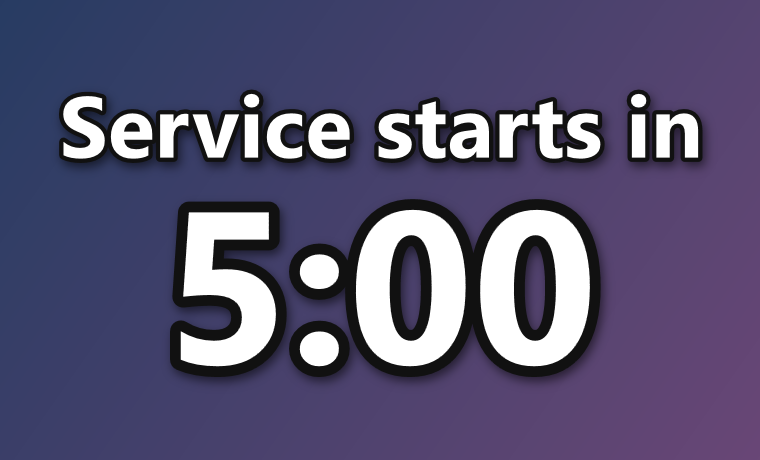
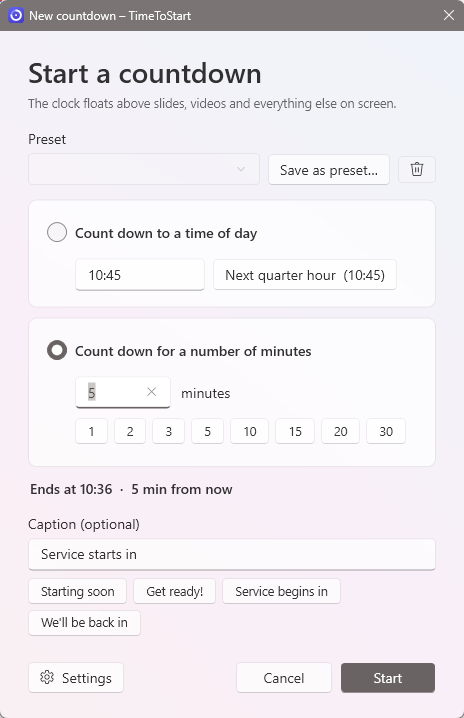
Type a time, such as 10:30, or a number of minutes. It even suggests the next quarter hour, so most weeks you just press Start.
Readable over anything
Every letter has an outline and soft shadow, so the clock stays clear over bright photos and moving video.
Adjust it while it runs
Add or take away a minute, pause, or change the caption, without your audience seeing you do it.
What it does
Start a countdown in one step
Count down to a time of day or for a number of minutes, with an optional caption such as “Service starts in” or “We'll be back in”. The window shows exactly when it will end before you start.
Run the same countdown every week? Save it as a preset and start it with a single click.
Make it look the way you want
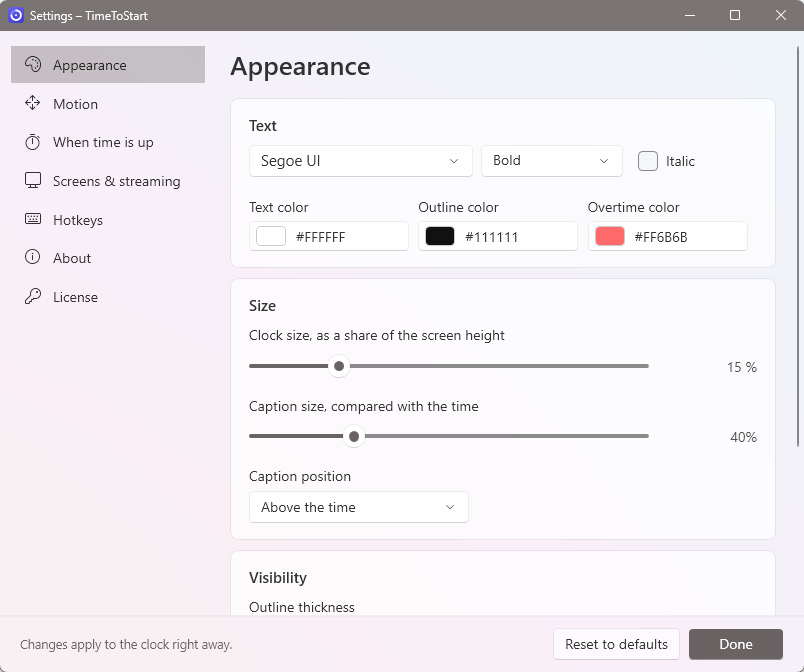
Any font, any colors, any size. Drag the clock anywhere and resize it like a window. Make it see-through, or let it drift slowly around the screen so it never hides the same part of your slide.
Every change shows on the clock immediately, even during a countdown.
Made for the booth
- Works with what you already use: PowerPoint and other presentation software, web browsers and video players. TimeToStart simply adds the clock on top.
- Projectors and second screens: put the clock on the screen your audience sees. It sizes itself to each screen, and finds its way back if a screen is unplugged.
- Keep an eye on it from your seat: the TimeToStart icon on your taskbar shows the minutes left, turning orange for the last minute.
- Your choice at 0:00: hide the clock, show a message such as “Starting now!”, or keep counting overtime to keep a speaker on time.
- Hands-free control: hotkeys work even while your presentation is in front, and a command line lets a Stream Deck or script drive the clock.
- Live-streaming: a streaming mode makes the clock easy to capture in OBS Studio.
Free to try, $9.95 to keep
Free version
$0
- The complete countdown clock, with every timing and end-of-countdown option
- Font, size, outline, see-through, drift and multiple screens
- Shows a small “TimeToStart” mark for 15 days, then “TimeToStart Demo”
Full version
$9.95 one-time
- No marks on the clock
- Custom colors, presets, hotkeys, command line and streaming mode
- Use it on two computers, such as the booth and a laptop
Own TimeToStart version 1? Upgrade for $4.99: enter the 10-letter code that came with version 1 on the purchase page. Payments are handled securely by PayPal, and your license key arrives immediately by email. See Free and full versions for details.
What's new in version 2
- Rebuilt from the ground up for Windows 10 and 11, with a modern look and sharp text on high-resolution screens
- Resize the clock by dragging, and it keeps its proportions
- Hours shown for long countdowns, and digits that don't jiggle as they change
- Messages and overtime at 0:00, presets, hotkeys, command line and streaming mode
- Installs itself in seconds, with no administrator rights needed if you choose “Just for me”
- A complete online user manual
Requirements and help
Windows 10 or Windows 11 (64-bit). Nothing else to install. An internet connection is needed only once, to activate the full version.
The user manual covers everything from the first countdown to OBS, and its troubleshooting page answers common questions. You can also contact us.
Looking for TimeToStart version 1 (2007)? Its information and help are on the TimeToStart 1 page.