TimeToStart user manual
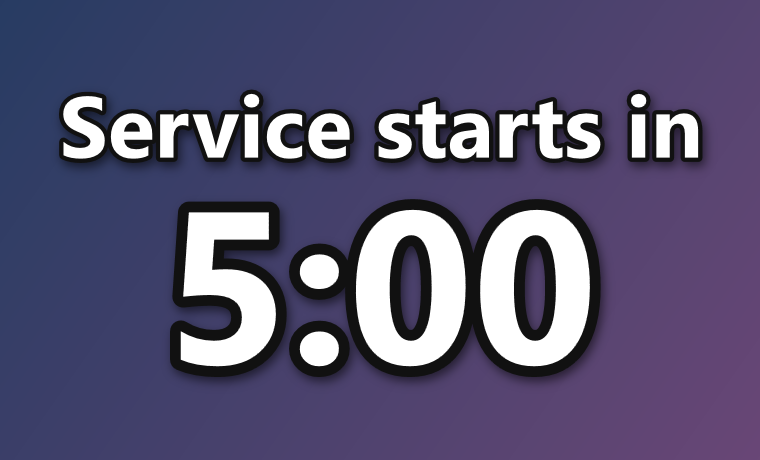
TimeToStart puts a countdown clock on top of whatever is on your screen: slides, song lyrics, a video or a welcome image. Choose when it ends, and it counts down, then gets out of the way.
The short version
- Download TimeToStart and open it. Choose Install.
- Choose when the countdown should end (a time of day, or a number of minutes) and type an optional caption. Choose Start.
- Drag the clock to where you want it. It stays on top of your presentation.
- At 0:00 the clock disappears. (You can have it show a message or keep counting instead.)
That's all most people ever need. The rest of this page explains each step.
1. Install TimeToStart
TimeToStart runs on Windows 10 and Windows 11. You don't need to install anything else first.
- Download TimeToStart.exe (about 70 MB) and open it.
- TimeToStart offers to install itself. Choose one:
- For everyone on this PC: the usual choice. Windows asks for permission; choose Yes.
- Just for me: if you don't have administrator rights on this computer.
- Choose Install. A few seconds later, TimeToStart opens. You'll find it in the Start menu and on your desktop.
If Windows says “Windows protected your PC”, see What to do about the “Windows protected your PC” message.
2. Start a countdown
When TimeToStart opens, it asks when the countdown should end.
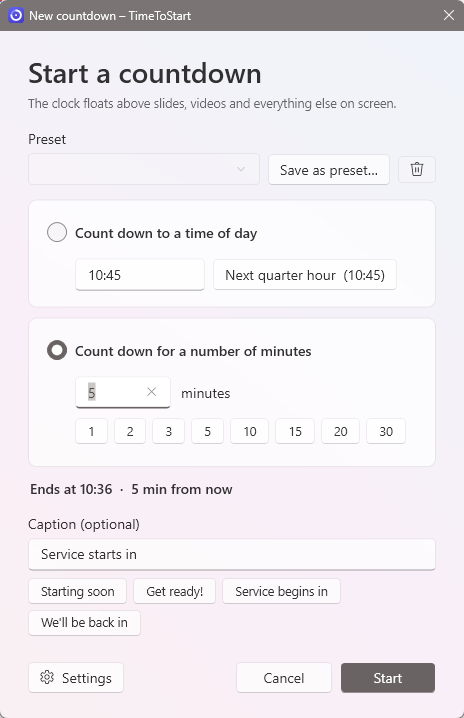
- Count down to a time of day: type when your service or event begins, such as 10:30, 7:15 PM or 1930. TimeToStart already suggests the next quarter hour, so you can often just choose Start. If you leave out AM or PM, it picks whichever comes next.
- Count down for a number of minutes: type a number such as 5 or 2.5, or minutes and seconds such as 4:30. The buttons below fill in common lengths.
- Caption (optional): a short line shown above the time, such as “Service starts in” or “We'll be back in”. Choose one of the suggestions or type your own.
The window shows exactly when the countdown will end. Choose Start, or press Enter.
3. While the clock is running
To move the clock, drag it. To make it bigger or smaller, drag any edge or corner, the same way you resize a window. TimeToStart remembers where you left it for next time.
Point at the clock and a small toolbar appears at the top of it:
| Button | What it does |
|---|---|
| Minus (−) | Takes a minute off the countdown. |
| Plus (+) | Adds a minute. Handy when the service is running late. |
| Pause | Freezes the countdown. Choose it again to carry on. |
| Pencil | Changes the caption. |
| Gear | Opens Settings: colors, font, size and more. Changes show on the clock immediately. |
| Close (×) | Stops the countdown and removes the clock. |
The toolbar hides itself after a few seconds. Your audience only sees it while you're pointing at the clock, so on a projector it's best to use these controls from your own screen, or from the icon described next.
The TimeToStart icon
While TimeToStart runs, its icon sits in the Windows notification area, at the right end of the taskbar. (If you don't see it, choose the small ^ arrow there.) The icon shows how many minutes are left, so you can keep track without looking at the projection screen:
- a blue number shows the minutes left;
- in the final minute it turns orange and counts the seconds;
- red means time is up (or the clock is counting overtime);
- gray with two bars means paused.
Right-click the icon (or the clock itself) for a menu with everything: pause, add or subtract a minute, edit the caption, hide the clock, move it to another screen, start a new countdown, Settings and Exit. Your audience never sees this menu.
4. When time is up
When the countdown reaches 0:00, the clock disappears and TimeToStart closes. You can change this in Settings → When time is up. The clock can instead show a message such as “Starting now!”, or keep counting as +0:15, +0:30… so you can see how far over you are. See When time is up.
Where to next
- Customizing the clock: colors, fonts, size, moving it around the screen, and other screens.
- Free and full versions: what the full version adds, buying, and activating your license.
- Troubleshooting and questions: if something isn't working as you expect.
- Advanced: hotkeys, the command line, and live-streaming with OBS.