Free and full versions
The free version of TimeToStart is a complete countdown clock: you can use it every week for as long as you like. The full version is a one-time purchase of $9.95 that removes the “TimeToStart” marks and adds a few extras.
| Feature | Free | Full |
|---|---|---|
| Countdown to a time or for minutes, captions | Yes | Yes |
| Pause, add or subtract time, all end-of-countdown options | Yes | Yes |
| Font, size, outline, opacity, shadow | Yes | Yes |
| Moving, resizing, drift, multiple screens, click-through | Yes | Yes |
| Custom text, outline and overtime colors | White and dark outline only | Yes |
| Presets | No | Yes |
| Hotkeys | No | Yes |
| Command-line control (for scripts and Stream Deck) | No | Yes |
| Streaming mode (for OBS) | No | Yes |
| Clock without the “TimeToStart” mark | No | Yes |
The marks on the free version's clock
For the first 15 days after you install it, the free version shows a small, faint “TimeToStart” just above the caption. The 15 days are calendar days, counted from the first day you run TimeToStart, so a church that uses it on Sundays gets two weekends to try it. After that, the clock shows “TimeToStart Demo” in red instead. The countdown itself always works fully.
Buying the full version
- In TimeToStart, open Settings, choose License, and choose Buy the full version. (Or go straight to the TimeToStart purchase page.)
- Enter the name the license is for (usually your church or organization; TimeToStart shows it as “Licensed to …”) and your email address.
- Pay with PayPal, or with a credit or debit card through PayPal.
- Your license key appears on the page straight away, and is emailed to you. It looks like TTS-7Q2KD-M4XNP-9RV3B-HJ6WT. Keep the email.
Owned TimeToStart version 1? The full version is $4.99 for you. Enter the 10-letter code you received with version 1 in the Upgrade or discount code box on the purchase page, and choose Apply.
Activating your license
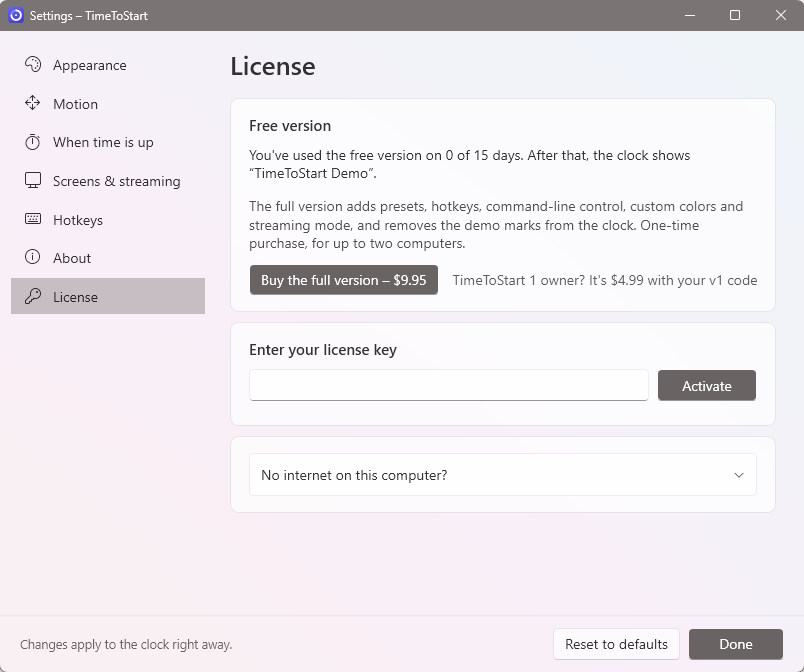
- Open Settings and choose License.
- Paste or type your license key in Enter your license key. Capitals, spaces and dashes don't matter.
- Choose Activate.
The marks disappear from the clock immediately, and the full version's features unlock. Activating needs an internet connection once. After that TimeToStart works completely offline. (It checks in quietly about once a month when it happens to be online, but never needs to.)
Using it on two computers
Each license works on two computers at a time, for example the computer in the sound booth and a laptop. Activate the same key on both.
Moving your license to a new computer
- If you still have the old computer: on it, open Settings → License and choose Deactivate this computer. Then activate the key on the new one.
- If the old computer is gone or broken: just try to activate on the new one. TimeToStart lists the computers using your license and lets you deactivate one. You can also do this on the manage your license page.
Reinstalling Windows or replacing a part (such as the hard drive) on the same computer usually doesn't count as a new computer.
Activating a computer that has no internet
Some sanctuary computers are never online. You can activate them with the help of any other device that is online:
- On the offline computer, open Settings → License, expand No internet on this computer?, and choose Copy next to the request code. Save it to a USB stick, or write it down carefully.
- On a device that's online, open the offline activation page. Enter your license key and the request code, and choose Create license.
- Copy the license text it gives you back to the offline computer. Type your license key in the key box, paste the license into the box under No internet on this computer?, and choose Apply.
Lost your license key?
Use the lost key page. Enter the email address you used when you bought, and we'll send your keys there.
Refunds
If TimeToStart isn't right for you, contact us for a full refund. The license then stops working, and TimeToStart returns to the free version.
What's sent when you activate
Only what's needed to check your license: the license key, two scrambled codes that identify the computer (they can't be turned back into anything about it), the computer's name (so you can tell your computers apart when moving the license), and the TimeToStart version. Nothing about what you show on screen is ever sent. Your name and email are used only to send and re-send your license key.