ChordPlayer user manual
ChordPlayer shows you how to play any guitar chord, and lets you hear it. Choose a chord, see it on a guitar neck turned the way you see your own guitar, and strum it with the mouse.
The short version
- Download ChordPlayer and open it. Choose Install.
- Choose a chord from left to right: its root (such as G), its type (Major, Minor…) and its variation. Or type its name, such as Em7, in the box at the top.
- Put your fingers where the round buttons are. The numbers say which finger: 1 is your index finger.
- Drag the mouse down across the strings, or press Space, to hear it.
That's all most people ever need. The rest of this page explains each step.
1. Install ChordPlayer
It runs on Windows 10 and Windows 11. You don't need to install anything else first.
- Download ChordPlayer.exe (about 72 MB) and open it.
- It offers to install itself. Choose one:
- For everyone on this PC: the usual choice. Windows asks for permission; choose Yes.
- Just for me: if you don't have administrator rights on this computer.
- Choose Install. A few seconds later, ChordPlayer opens. You'll find it in the Start menu, and on your desktop if you ticked that box.
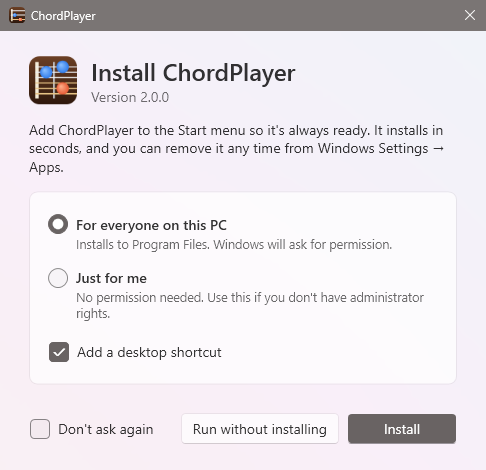
If Windows says “Windows protected your PC”, see What to do about the “Windows protected your PC” message.
2. Choose a chord
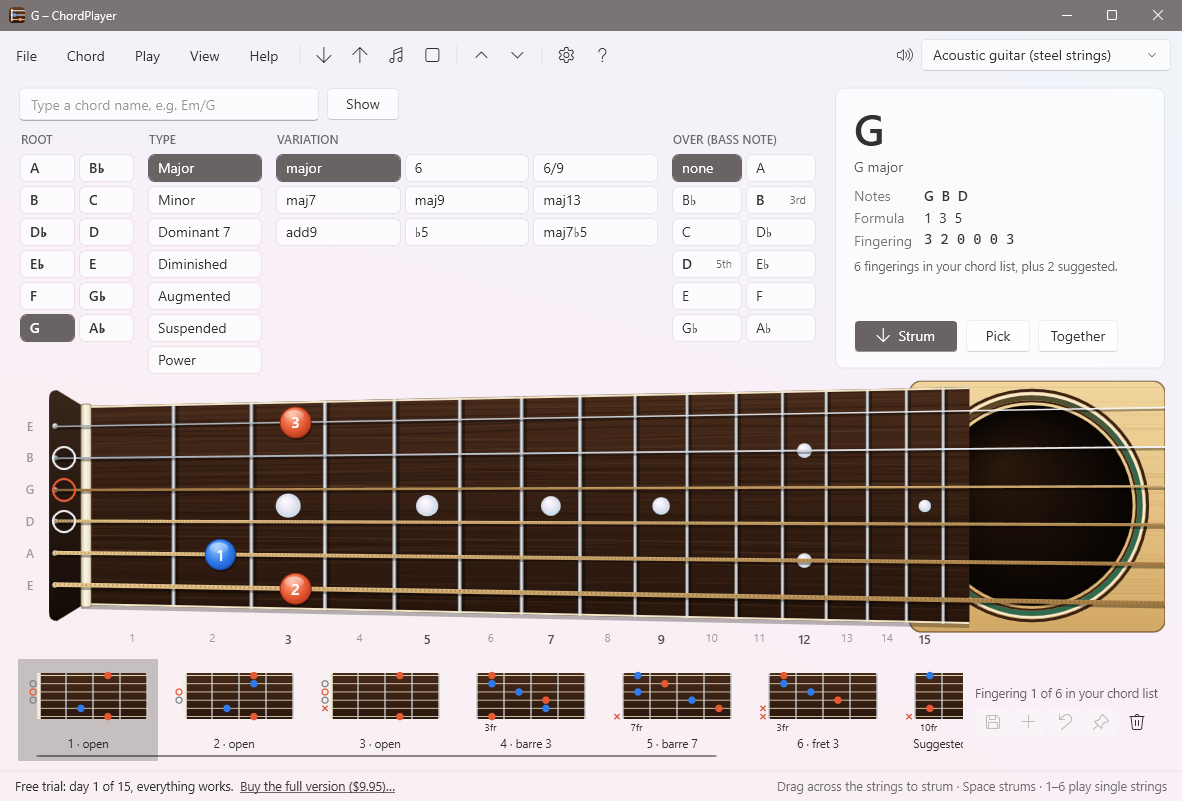
The four columns at the top work from left to right:
- Root: the note the chord is built on, such as G or B♭.
- Type: Major, Minor, Dominant 7, Diminished, Augmented, Suspended or Power.
- Variation: the exact chord, such as maj7, m9 or add9.
- Over (bass note): for chords such as G/B, the note to play at the bottom. Leave it on none for an ordinary chord.
If you know the chord's name, type it in the box at the top instead, such as Em/G, Bbmaj7 or F#m7b5. The columns follow as you type; press Enter to hear it.
3. Find it on your guitar
The neck is drawn the way you see your guitar when you hold it and look down: the low E string at the bottom, the high E string at the top, the nut on the left and the soundhole on the right. (Left-handed? See Left-handed players.)
- Each round button is a finger. The number is the finger to use: 1 index, 2 middle, 3 ring, 4 little finger. A long bar across several strings is a barre: lay your first finger flat across them.
- An orange button is the chord's root note; the blue ones are the other notes.
- A ring to the left of the nut means play that string open; a red ✕ means don't play it.
4. Hear it
Drag the mouse across the strings, anywhere on the neck or over the soundhole. Each string sounds as you cross it, just like strumming with a pick. Or:
- Press Space or choose Strum to strum down; Shift+Space strums up.
- Choose Pick to hear one string at a time, or Together for all at once.
- Press 1 to 6 to play a single string (1 is the high E string, 6 the low E, as guitarists number them).
The list along the bottom shows other ways to play the same chord. Choose one to see and hear it.
Where to next
- Finding and playing chords: every chord type, bass notes, fingerings, your own shapes, and sounds.
- Free and full versions: the 15-day trial, what stays free, buying, and activating your license.
- Troubleshooting and questions: if something isn't working as you expect.
- Advanced: Settings, shortcuts, the chord list file, and the command line.