Advanced
- Settings
- Keyboard shortcuts
- The chord list file
- Command line
- Installing on many computers
- Where settings are kept
- Portable use
Settings
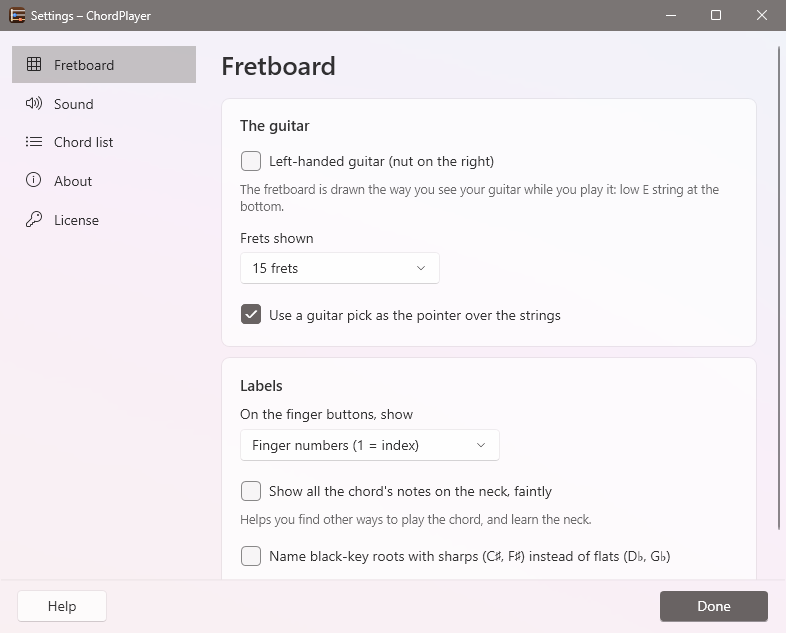
Open File → Settings, the gear button in the toolbar, or press Ctrl+,. Changes take effect straight away.
| Page | What's there |
|---|---|
| Fretboard | Left-handed guitar; 12, 15 or 19 frets; the pick pointer over the strings; what the finger buttons show; marking all the chord's notes; sharps or flats for black-key roots. |
| Sound | The instrument, volume, strum speed and how long notes ring; strumming each chord as it's chosen; playing a string when you place a finger; the MIDI output. See Sounds. |
| Chord list | How many chords and fingerings your list has, where the file is, and Export, Import, Reload and Restore. See The chord list file. |
| About | Version, installation, the settings file, and Reset to defaults. |
| License | Trial status, buying, activating and deactivating. See Free and full versions. |
Keyboard shortcuts
| Keys | What they do |
|---|---|
| Space / Shift+Space | Strum down / up |
| P | Pick one string at a time |
| T | Play all the strings together |
| 1 – 6 | Play one string (1 = high E, 6 = low E) |
| Esc | Stop all sound |
| Ctrl+F | Type a chord name |
| Ctrl+↑ / Ctrl+↓ | Half step up / down |
| Ctrl+→ / Ctrl+← | Next / previous fingering |
| Ctrl+S | Save changes to the fingering |
| Ctrl+Shift+S | Save as a new fingering |
| Ctrl+Z | Undo changes to the fingering |
| Ctrl+, | Settings |
| F1 | This manual |
The chord columns and the fingerings row also work with the arrow keys and Tab.
The chord list file
ChordPlayer starts with version 1's chord list built in: 462 chords and 2,107 fingerings, each one checked against
the chord's notes (a few that were wrong in the original file were corrected or left out). The first time ChordPlayer
runs, it writes the list to chords.json, in the same folder as its settings. From then on, that file is
your chord list, and every fingering you save, change or delete is saved there.
| Command | What it does |
|---|---|
| Export the chord list | Saves a copy anywhere, to back up or share |
| Import a chord list | Replaces your list with one exported earlier or shared with you (full version). Your current list is kept as a backup first. |
| Open the chord list folder | Shows chords.json in File Explorer |
| Reload the chord list | Reads the file again, after you've edited it by hand |
| Restore the original chord list | Puts ChordPlayer's built-in list back. Your list is kept as chords.backup-date.json. |
Editing it by hand
The file is plain text in JSON format, readable in Notepad. Edit it while ChordPlayer is closed, or use Reload the chord list afterwards. Each chord has a name and its fingerings, best first:
{ "name": "Am7", "fingerings": [
  { "frets": "x 0 2 0 1 0", "style": "Open" },
  { "frets": "5 7 5 5 5 5", "style": "Barre" }
] },
{ "name": "Em/G", "fingerings": [
  { "frets": "3 x 2 0 0 0" }
] }- name: any chord name ChordPlayer understands (see Typing a chord name). C♯m and D♭m are the same chord, so use one or the other.
- frets: six values from the low E string to the high E string:
xfor a string that isn't played,0for an open string, otherwise the fret number. Version 1's style, six characters witha–ffor frets 10–15 (x0accc), works too. - style (optional): a label shown in the tooltip: Open, Barre, Jazz or Mine.
If the file can't be read, ChordPlayer says so, uses its built-in list, and keeps your file as
chords.json.bad so nothing is lost. Fix it, rename it back to chords.json, and reload.
Command line
When ChordPlayer is already running, these commands go to the running copy.
| Option | What it does |
|---|---|
--chord <name> | Show a chord, for example --chord "Em/G" |
--play | With --chord: strum it, even if strumming each chord as it's chosen is turned off |
--no-activate | With --chord: show it without taking the keyboard from the program you're using (how the Tray Transpose Tool sends chords) |
--settings | Open Settings |
--quit | Exit ChordPlayer |
--activate <key> | Activate a license key on this computer |
--install | Install or update it on this computer (shows the install window) |
--uninstall | Remove it; add --quiet to skip the questions |
--help | List these options |
Installing on many computers
For a school, church or music department:
- Run
ChordPlayer.exe --installand choose For everyone on this PC. It installs toC:\Program Files\ChordPlayerand adds a Start menu shortcut and an entry in Windows Settings → Apps. - Activate each computer with
"C:\Program Files\ChordPlayer\ChordPlayer.exe" --activate CPL-XXXXX-XXXXX-XXXXX-XXXXX, run as the person who will use it. Each license covers two computers; ask us about more. - To give everyone the same chord list, export it once and import it on each computer.
- Remove it silently with
"C:\Program Files\ChordPlayer\ChordPlayer.exe" --uninstall --quiet.
Where settings are kept
Settings are kept in %AppData%\ChordPlayer\settings.json for each Windows user, and the chord list in
chords.json next to it. Problems are logged in error.log in the same folder; include it if you
contact us. Settings → About → Open folder opens it.
Portable use
To keep the program and its settings together, for example on a USB stick, create an empty file named
ChordPlayer.settings.json next to ChordPlayer.exe. Settings are then saved there instead, and
the chord list as ChordPlayer.chords.json. The trial and the license are tied to the computer and the
Windows user, so a portable copy still needs activating on each computer it's used on.