Finding and playing chords
- Choosing a chord
- Typing a chord name
- Over chords (a different bass note)
- Reading the fretboard
- Strumming and playing
- Other fingerings
- Trying and saving your own fingerings
- Name that chord
- Sounds
- With the Tray Transpose Tool
- Every chord type
Choosing a chord
The four columns at the top of the window choose a chord from left to right:
| Column | What it chooses | Examples |
|---|---|---|
| Root | The note the chord is built on | A, B♭, C, F♯ |
| Type | The chord's family | Major, Minor, Dominant 7, Diminished, Augmented, Suspended, Power |
| Variation | The exact chord in that family | maj7, m9, 7♯9, add9, sus4, 6/9 |
| Over (bass note) | A note to play at the bottom, for chords written with a slash | Em/G, D/F♯ |
Change any column and the others stay put where they can: choose a different root and you keep the same variation (Am7 becomes Bm7), with the bass note moved along with it. Choosing a type picks its plainest variation first: Minor gives you a minor chord, Dominant 7 a 7th chord.
Some chords belong to two families, and you'll find them in both: m7♭5 (half-diminished) is under Minor and Diminished, and 7♯5 under Dominant 7 and Augmented.
To move the whole chord up or down a half step, use the arrow buttons in the toolbar, or press Ctrl+↑ and Ctrl+↓. Hold the tooltip over a variation to see its full name and how many fingerings the chord list has for it.
Typing a chord name
Type a chord name in the box at the top (or press Ctrl+F to get there). As you type, the columns and the fretboard follow; press Enter to hear it. ChordPlayer understands the usual ways of writing chords:
- Sharps and flats as # and b or ♯ and ♭: F#m, Bb7. C♯m and D♭m are the same chord, and both find it.
- Major sevenths as maj7, M7, ma7 or Δ7; minor as m, min or a minus sign (C-7).
- Diminished as dim or °, half-diminished as m7♭5, m7-5 or ø; augmented as aug or +.
- sus (meaning sus4), 2 (sus2), add2 (add9), 69 (6/9), 7alt, 7+5, 7-9 and many more.
- Bass notes after a slash: Em/G, A6/9/E.
If a chord isn't one of the usual types, such as Dadd11, ChordPlayer still shows it if it can read it: it works out the notes from the name and finds fingerings for them. The variation column then shows the chord you typed, marked typed.
Over chords (a different bass note)
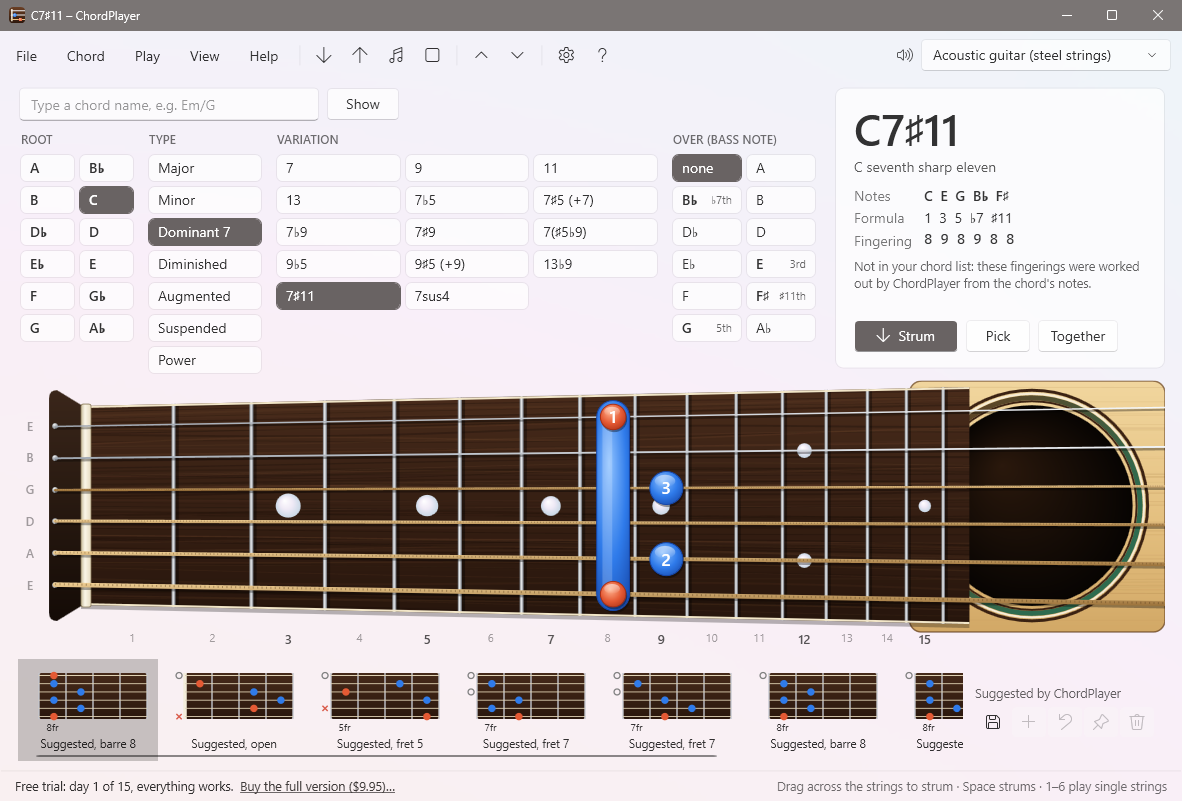
A chord such as G/B (“G over B”) is a G chord with B as its lowest note. Choose the bass note in the Over column. Notes that belong to the chord are in bold and say which they are (3rd, 5th…); choosing one of those turns the chord upside down (an inversion). Any other note adds a new bass note, as in D/C.
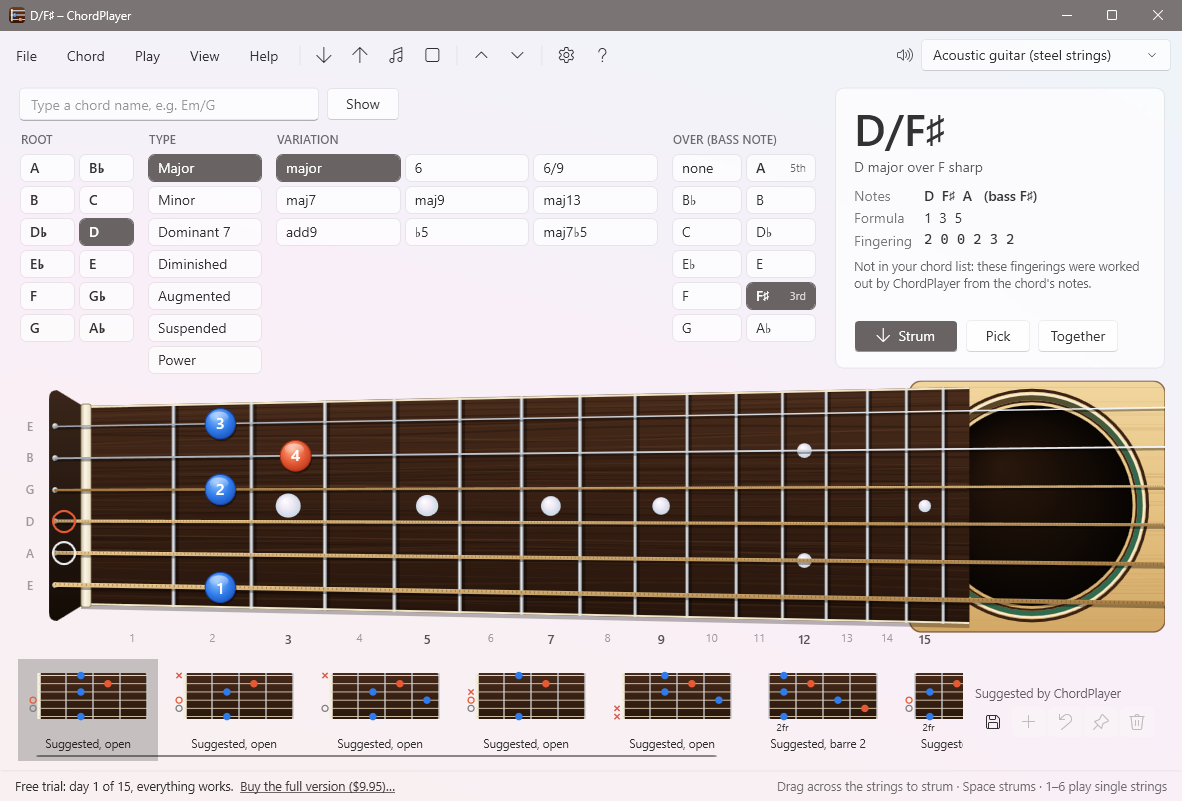
The chord list has fingerings for some over chords; for all the others, ChordPlayer finds playable fingerings with that note at the bottom.
Reading the fretboard
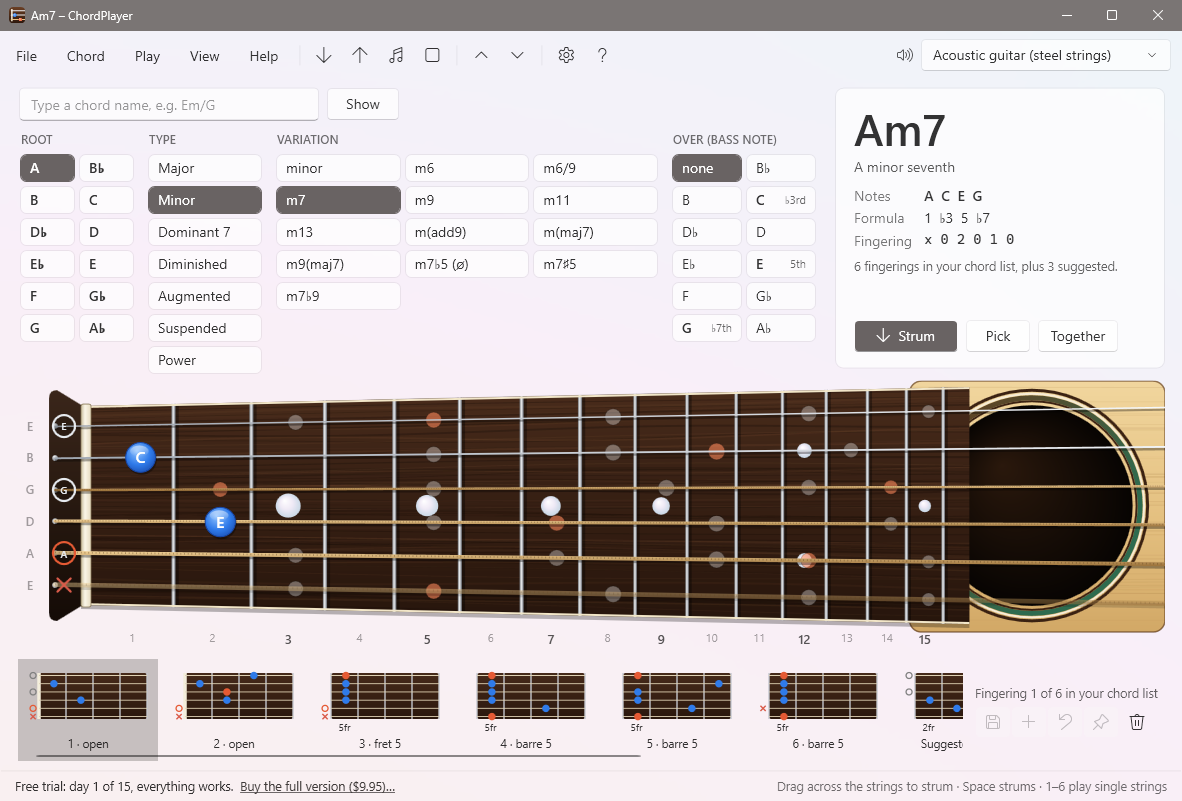
The neck is drawn the way you see your guitar while you play it: the low E string at the bottom, the high E string at the top, the nut on the left and the soundhole on the right. The string names are down the left side, and the fret numbers along the bottom.
- Round buttons are fingers. The orange ones are the chord's root note.
- A bar across several strings is a barre: one finger, usually your first, laid across them.
- To the left of the nut, a ring means the string is played open, and a red ✕ means it isn't played.
What the buttons show is up to you, in View → On the finger buttons, show:
- Finger numbers: 1 index, 2 middle, 3 ring, 4 little finger. ChordPlayer suggests the usual fingering for each shape.
- Note names: A, C♯, E… spelled the way the chord spells them.
- Intervals: 1 for the root, then ♭3, 5, ♭7 and so on, so you can see how the chord is built.
View → Show all the chord's notes on the neck marks, faintly, every other place you could play the chord's notes. It's a good way to find your own fingerings, and to learn the neck.
Left-handed players
Choose View → Left-handed guitar. The neck is mirrored, with the nut on the right, the way you see your own guitar. The low E string stays at the bottom.
Strumming and playing
Drag the mouse across the strings to strum them. Each string sounds as you cross it, so a slow drag plays them one at a time and a quick flick strums the chord; the faster you go, the louder. Drag down for a downstroke (low E first) or up for an upstroke. You can strum anywhere on the neck, as long as you start between frets rather than on a finger, or over the soundhole, where the pointer becomes a pick. A string you play again stops ringing and starts again, just like on a guitar.
| Button or key | What it does |
|---|---|
| Strum, Space | Strum down, low E to high E |
| Shift+Space | Strum up |
| Pick, P | One string at a time, like a picked arpeggio |
| Together, T | All the strings at once |
| 1 – 6 | One string: 1 is the high E, 6 the low E |
| Click a string over the soundhole | That string alone |
| Esc | Stop all sound |
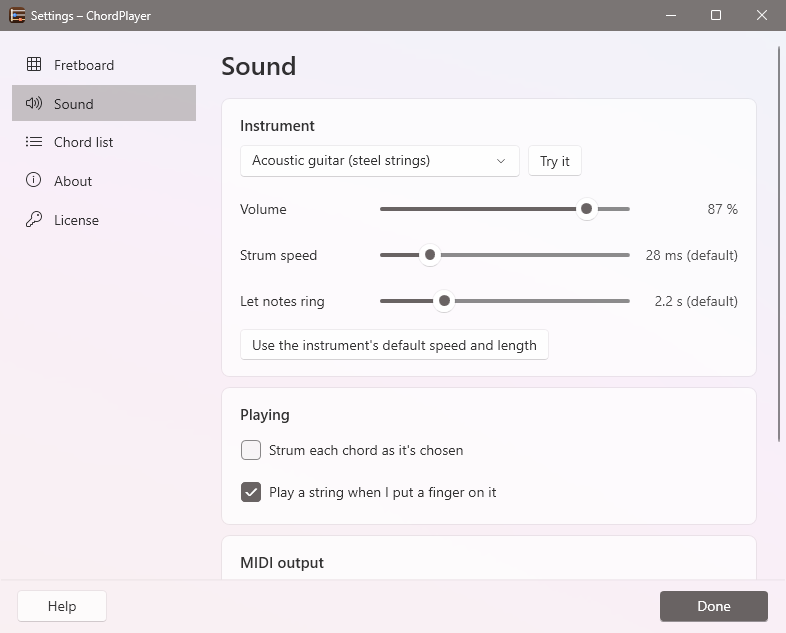
Each new chord you choose is strummed straight away. To choose chords silently, turn off Play → Strum each chord as it's chosen.
Other fingerings
The row along the bottom of the window shows every fingering for the chord. Choose one to see and hear it, or press Ctrl+→ and Ctrl+←.
- Numbered fingerings (1, 2, 3…) are in your chord list. Their captions say whether they're open chords, barre chords or played higher up the neck.
- Suggested fingerings were worked out by ChordPlayer. They use the chord's important notes, put the right note at the bottom, and never need more than four fingers (with a barre). There are always a few, even for chords the list already has, so you have more choices up and down the neck.
Trying and saving your own fingerings
You can change the fingering on the fretboard:
- Click a fret on a string to put a finger there.
- Drag a finger along its string to another fret. Click a finger to lift it, so the string is played open.
- Click to the left of the nut to switch a string between open and not played.
Each change plays the string you changed (turn this off in Settings → Sound). The chord panel shows the frets and says whether it's still the same chord. When you like it, use the buttons beside the fingerings:
| Button | What it does |
|---|---|
| Save changes (Ctrl+S) | Replaces the fingering you started from. On a suggested fingering, adds it to your chord list. |
| Save as a new fingering (Ctrl+Shift+S) | Adds it at the end of the chord's list, keeping the original |
| Undo my changes (Ctrl+Z) | Puts the fingering back as it was |
| Make this the first fingering | Moves it to the front, so it's the one shown when you choose the chord |
| Delete this fingering | Removes it from your chord list (after asking) |
Your changes are saved in the chord list straight away. To add a whole new chord, type its name, make the shape, and save it. If you ever want ChordPlayer's original list back, use File → Restore the original chord list; your own list is kept as a backup. See The chord list file for more.
Name that chord
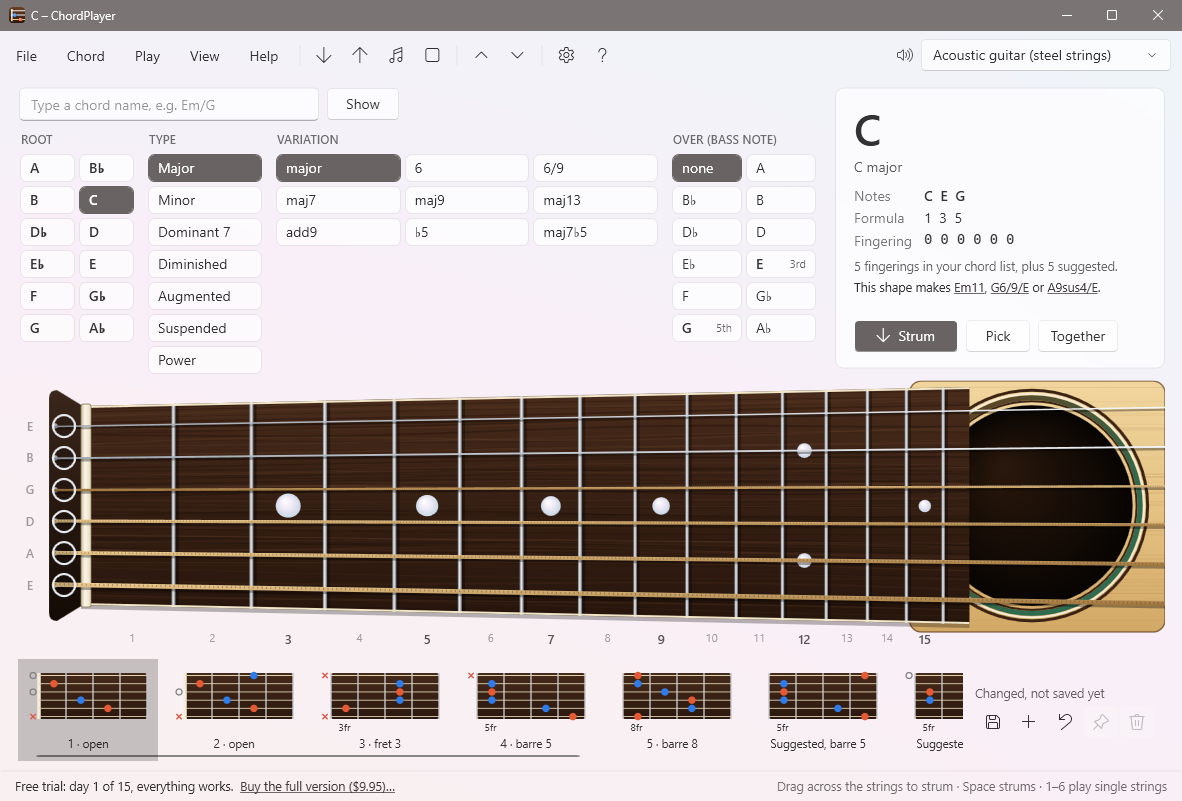
When you change a fingering, ChordPlayer tells you what chord your shape makes, such as This shape makes C/E or Am7/E. Each name is a link: choose one to switch to that chord while keeping your shape on the fretboard, ready to save under that name.
To start from scratch, choose Chord → Start from open strings (name that chord), then put your fingers wherever you like.
Sounds
Choose the instrument in the list at the top right of the window, or in Play → Chord sound. ChordPlayer plays it as soon as you choose, so you can hear the difference. The choices are steel-string, nylon-string and electric guitar, banjo, harp, piano, electric piano, church organ, strings, choir and vibraphone. Guitar-like instruments strum; keyboard instruments play the notes together.
Settings → Sound also has:
- Volume, strum speed (the time between strings) and how long notes ring. Use the instrument's default speed and length puts these back.
- MIDI output: ChordPlayer plays through Windows' built-in synthesizer. If you have a MIDI keyboard, sound module or software instrument, choose it here instead.
With the Tray Transpose Tool
If you use the Tray Transpose Tool (version 3.1 or later) for your chord sheets, clicking a chord in a song can show it here: ChordPlayer picks the chord, shows its fingering and strums it, while you keep working in the Tray Transpose Tool. Turn it on in the Tray Transpose Tool's Settings → Chords → Show and play them in ChordPlayer (it also asks the first time you click a chord). ChordPlayer starts by itself with the first chord if it isn't already open.
If you're in the middle of changing a fingering when a chord arrives, ChordPlayer plays it but leaves your shape on the fretboard, and says so in the status line, so your changes are never lost.
Every chord type
These are the variations under each type. Those marked † weren't in version 1's chord list; ChordPlayer works out their fingerings for every root.
| Type | Variations (as written for C) |
|---|---|
| Major | C, C6, C6/9, Cmaj7, Cmaj9, Cmaj13†, Cadd9, C(♭5), Cmaj7♭5 |
| Minor | Cm, Cm6, Cm6/9, Cm7, Cm9, Cm11, Cm13†, Cm(add9)†, Cm(maj7), Cm9(maj7), Cm7♭5 (ø), Cm7♯5, Cm7♭9 |
| Dominant 7 | C7, C9, C11, C13, C7♭5, C7♯5, C7♭9, C7♯9, C7(♯5♭9), C9♭5, C9♯5, C13♭9, C7♯11†, C7sus4 |
| Diminished | Cdim†, C°7, Cm7♭5 (ø) |
| Augmented | C+ (aug), C7♯5 (+7), C7(♯5♭9), C9♯5 (+9) |
| Suspended | Csus2, Csus4, C7sus4, C9sus4† |
| Power | C5, C7(no 3rd) |
Any of them can have a bass note from the Over column.