Customizing the clock
Everything about how the clock looks and behaves is in Settings. Changes show on the clock immediately, even in the middle of a countdown, so you can adjust it while you watch.
To open Settings, do any one of these:
- point at the clock and choose the gear button on its toolbar;
- double-click the clock;
- right-click the TimeToStart icon in the notification area and choose Settings…;
- choose Settings in the Start a countdown window.
When no countdown is running, Settings shows a sample clock so you can see your changes.
On this page:
- Colors, font and size
- Changing the caption
- Moving and resizing
- Using another screen or projector
- Drift: keeping the clock moving
- When time is up
- Presets: saving your favorite countdowns
- Starting over
Colors, font and size
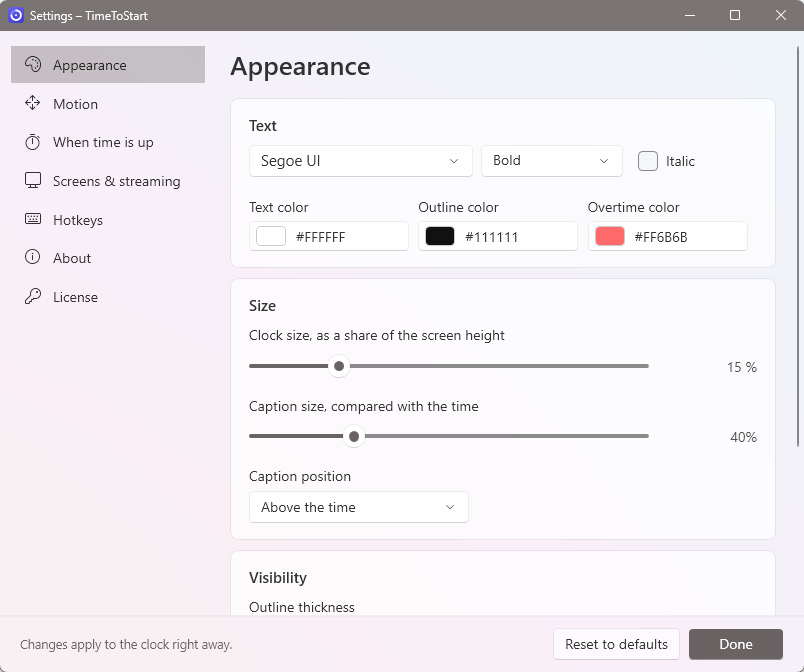
- Font, weight and italic
- Any font installed on your computer. Bold or heavier weights read best from the back of a room.
- Text color, outline color and overtime color (full version)
- Choose a color from the palette, type a color code such as #FFCC00, or choose More… for any color. The outline is the dark edge around every letter that keeps the clock readable over light and busy backgrounds. The overtime color is used when the clock keeps counting past 0:00. The free version uses white with a dark outline.
- Clock size
- Set as a share of the screen's height, so the clock looks the same size on a laptop and on a large projector. You can also simply drag the clock's edges.
- Caption size and position
- How big the caption is compared with the time, and whether it goes above or below it.
- Outline thickness, opacity and soft shadow
- A thicker outline stands out more over busy pictures. Lower opacity lets your slide show through the clock. The soft shadow adds depth.
Tip: for a quick check of readability, look at the clock over your brightest slide. If it's hard to read, increase the outline thickness before changing colors.
Changing the caption
Point at the clock and choose the pencil button, or right-click the clock or the TimeToStart icon and choose Edit caption…. Leave it empty to show just the time.
Moving and resizing
- Move: drag the clock anywhere.
- Resize: drag any edge or corner. The clock keeps its shape and the text grows or shrinks to match.
- TimeToStart remembers the clock's place and size for next time.
- If the clock ever ends up partly off the screen, or a screen it was on is disconnected, it moves itself back.
Sometimes you need to click whatever is under the clock. Turn on click-through to let clicks pass through it; see Click-through.
Using another screen or projector
If your computer has more than one screen (for example your own monitor plus a projector), put the clock on the one your audience sees:
- drag the clock across to the other screen; or
- right-click the TimeToStart icon, choose Move to screen, and pick a screen; or
- in Settings, open Screens & streaming, pick the screen, and choose Move clock here.
Screens are numbered from left to right, matching how they're arranged in Windows display settings. The clock's size adjusts to each screen.
Drift: keeping the clock moving
In Settings, Motion, you can have the clock drift slowly around its screen so it never covers one part of your slide for long. Choose straight lines or gentle curves, and a speed from 1 (slow) to 10. The clock holds still while you point at it, so you can still use its toolbar.
When time is up
In Settings, When time is up, choose what happens at 0:00:
- Hide the clock (the usual choice)
- The clock disappears.
- Show a message
- The time is replaced by your message, such as “Starting now!” or “Please silence your phones”. Choose how long it stays up, or slide all the way left to keep it until you stop it.
- Keep counting (overtime)
- The clock carries on as +0:01, +0:02… in the overtime color, useful for keeping a speaker on time. Choose the close button on the clock's toolbar when you're done.
You can also play the Windows notification sound at 0:00. Leave this off if your computer is connected to the room's sound system.
Normally TimeToStart closes when no countdown is running. To keep it waiting in the notification area instead, ready for the next countdown, turn off Close TimeToStart when no countdown is running.
Presets: saving your favorite countdowns (full version)
If you run the same countdown every week, save it as a preset:
- In the Start a countdown window, set the time and caption.
- Choose Save as preset… and give it a name, such as “Sunday morning”.
- Tick Also save the current look if this countdown should always use particular colors, size or motion.
Next time, pick the preset from the Preset list, or right-click the TimeToStart icon and choose Start preset. Presets that end at a time of day always count down to the next time it occurs.
Starting over
Choose Reset to defaults at the bottom of Settings to put every setting back to how it was when you installed TimeToStart. Your presets and your license are kept.